
01 · Install
下载与安装
Download and install
只从官网下载安装包。三个平台的安装包都通过本站 HTTPS 直接提供,不需要前往 GitHub Release。
Download only from the official website. Packages for all three platforms are delivered directly over HTTPS without a GitHub Release detour.
官网提供两种 .exe:安装版可在中文/English 双语安装器中选择安装路径,升级会识别原路径并支持中文和空格路径;绿色版无需安装,下载后直接运行,不创建安装目录或卸载项。绿色版的设置、个人词典与本地历史仍保存在当前 Windows 用户配置目录中。
The website provides two .exe options. The installer supports Chinese or English, custom paths, upgrades, and non-ASCII or spaced paths. The portable build runs directly without installation and creates no installer or uninstall entry. Its settings, personal dictionary, and local history still live in the current Windows user profile.
下载通用 .dmg,同时支持 Intel 与 Apple Silicon;打开后将应用拖入“应用程序”。
Download the universal .dmg for Intel and Apple Silicon, then drag the app into Applications.
Debian / Ubuntu 使用 .deb;需要便携运行时选择 AppImage,并先授予执行权限。
Use the .deb on Debian / Ubuntu, or choose the portable AppImage and make it executable first.
首次安装提醒:当前版本尚未购买代码签名证书,Windows SmartScreen 或 macOS Gatekeeper 可能显示安全提醒。请先确认文件来自 ssssa.cn / qm.ssssa.cn,再按系统提示继续。First-install notice: The current build is not code-signed, so Windows SmartScreen or macOS Gatekeeper may warn you. Confirm the file came from ssssa.cn / qm.ssssa.cn before continuing.
02 · First use
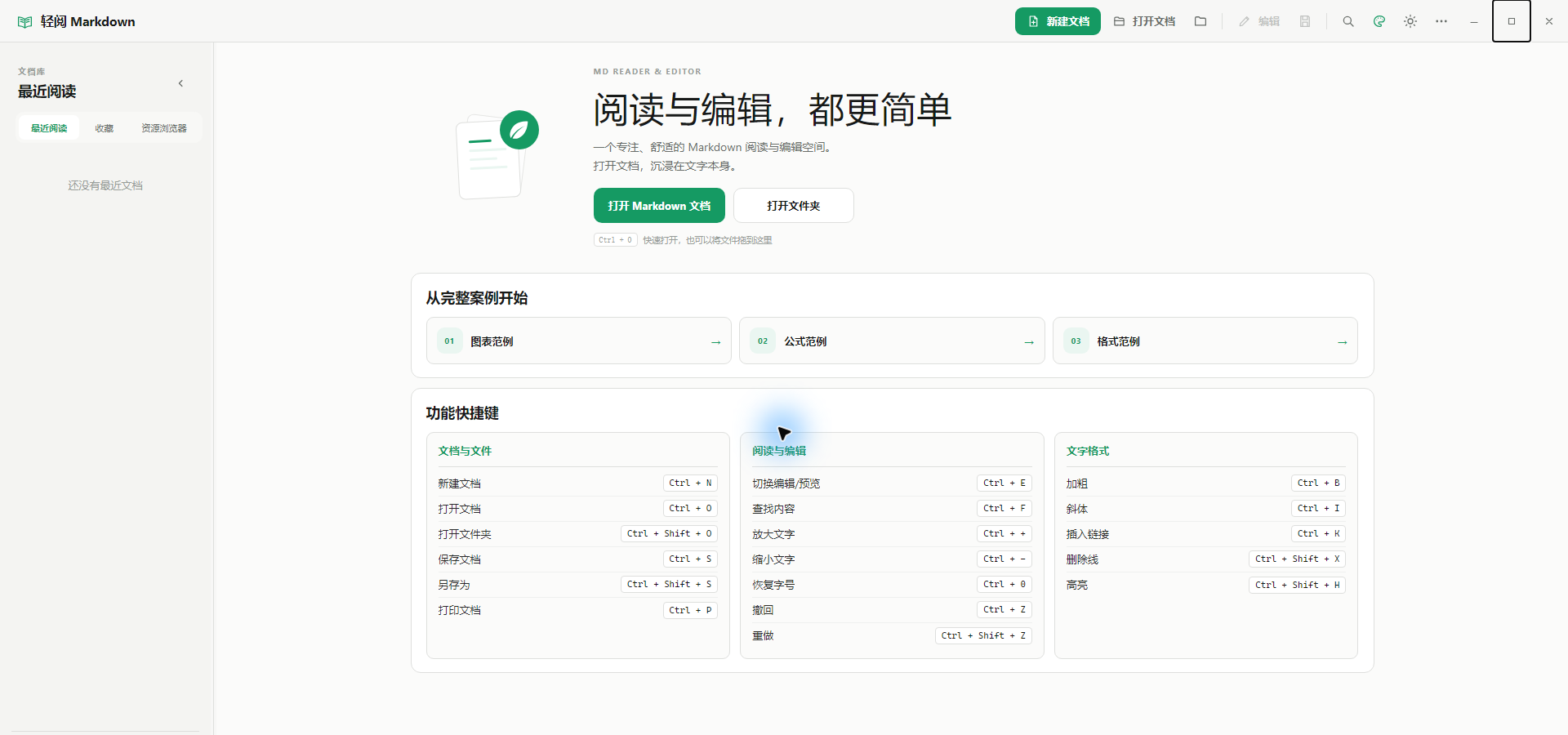
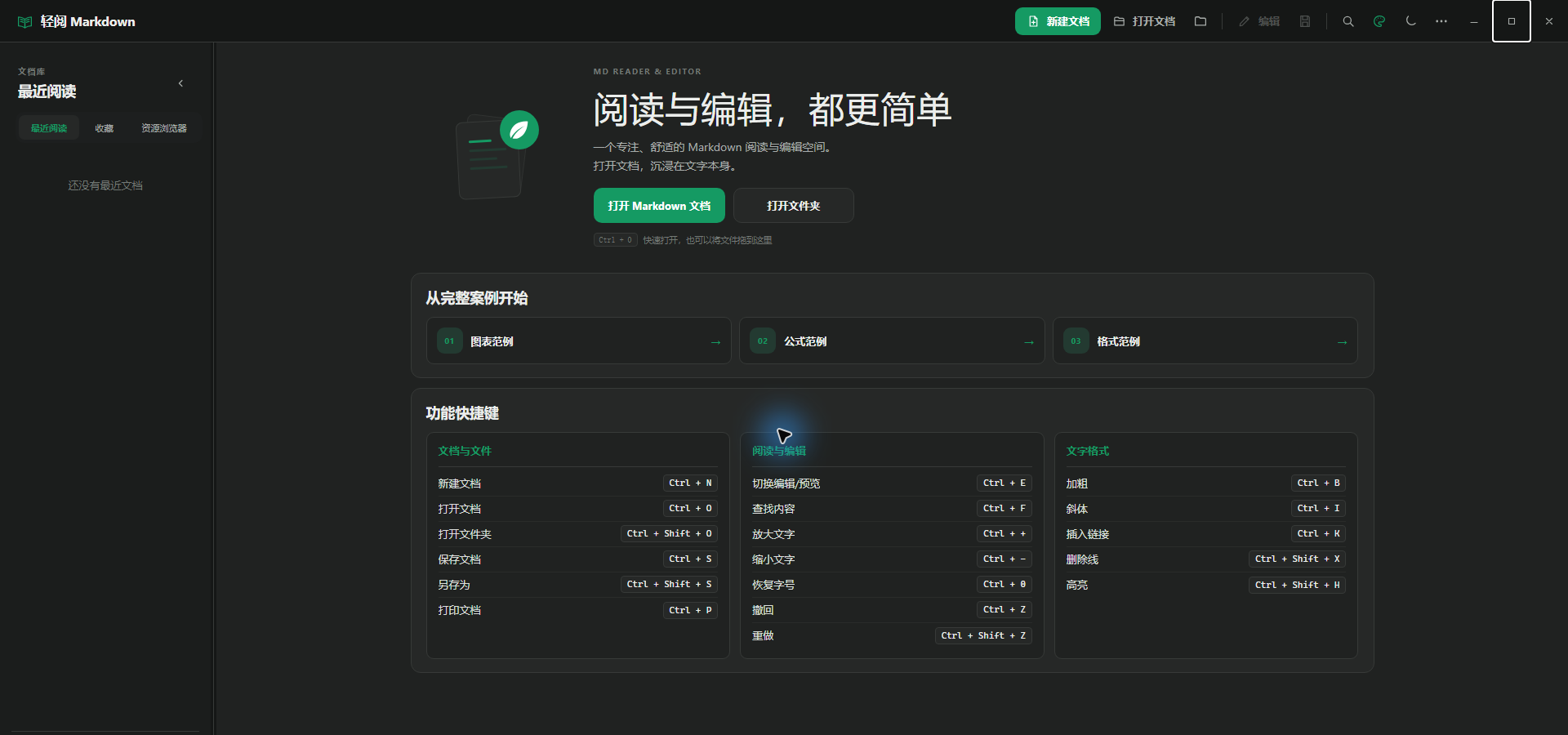
第一次启动:三种开始方式
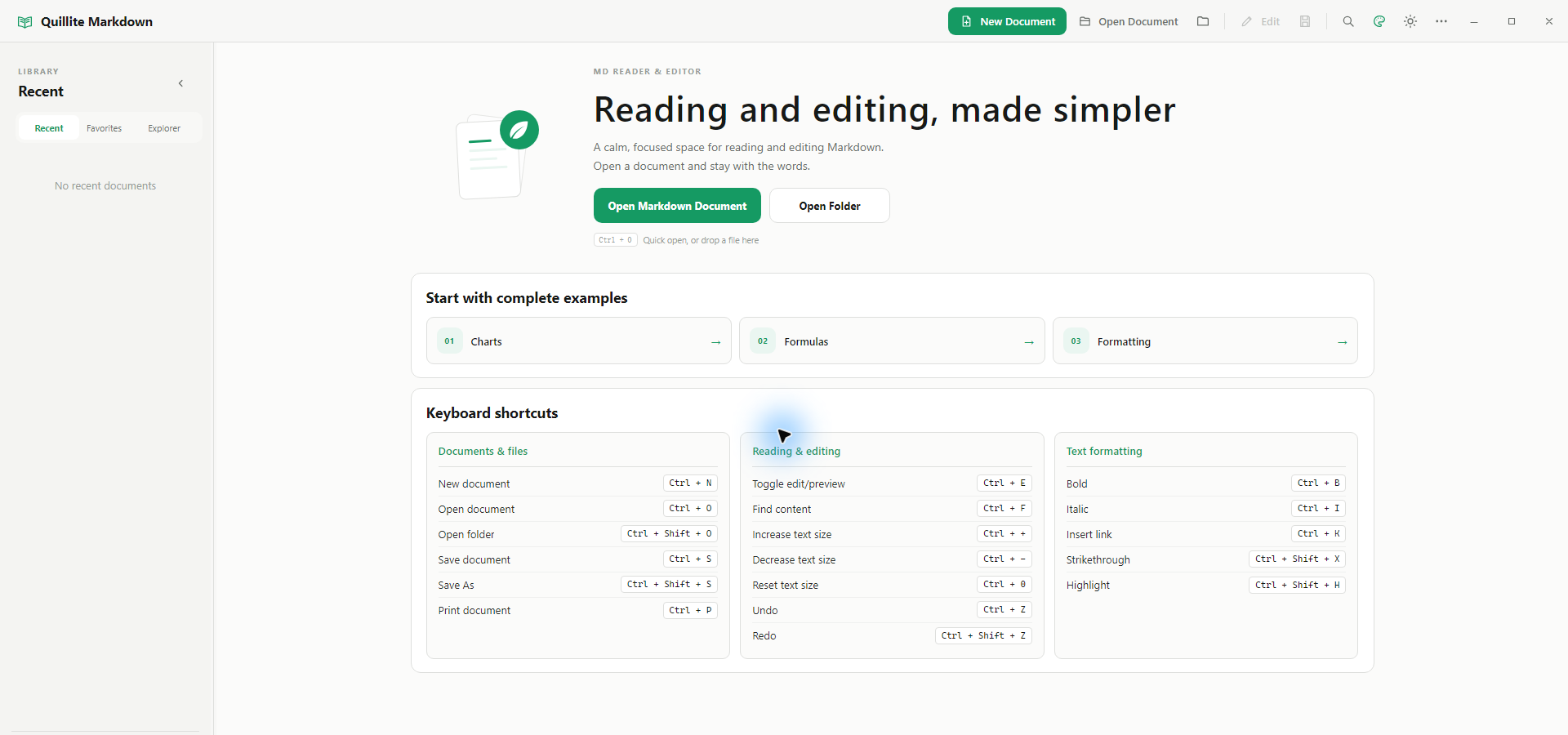
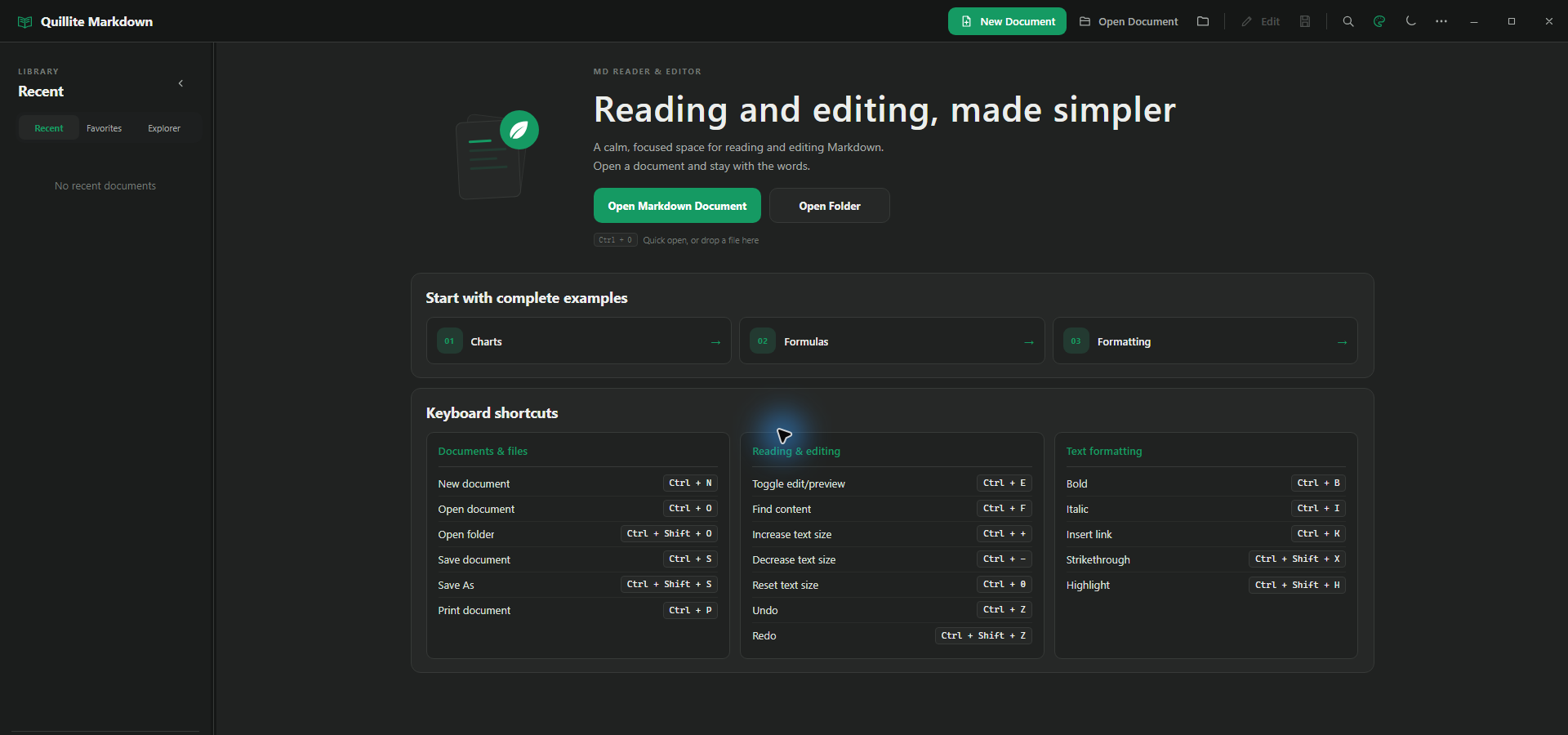
First launch: three ways to begin
- 新建文档点击“新建”,立即进入编辑。草稿会保存在安全位置;首次手动保存可选择名称和位置。另存成功只更新草稿身份和列表,原草稿文件保留,不自动删除。创建期间入口会锁定,成功后继续保护 3 秒,避免连点或快捷键重复建立文件。
- 打开单个文件点击“打开文档”,选择
.md、.markdown、.mdown、.mkd或.txt;也可以把文件拖进窗口。 - 打开文件夹点击“打开文件夹”,在资源浏览器中按原有目录结构浏览本地文档。轻阅不会建立专有资料库。
- New documentSelect New and start editing. The first manual save lets you choose its name and folder; Save As transfers draft identity and list entries but retains the original draft file. Creation locks while running and for three seconds after success so repeated clicks or shortcuts cannot make duplicate files.
- Open one fileSelect Open Document for
.md,.markdown,.mdown,.mkd, or.txt, or drag a file into the window. - Open a folderSelect Open Folder to browse local documents in their existing directory structure. Quillite never creates a proprietary vault.
v2.7.8 · Latest features
v2.7.8 新功能实操
Hands-on guide to v2.7.8
本节同步至 2026 年 10 月 13 日的 v2.7.8:编辑器内直接显示图表、插入后收起源码、统计数据与保存前渲染校验、异常恢复与可选诊断增强;并补齐此前版本的可视化公式、图片布局和正文风格说明。下载区始终以官网版本库显示的正式版为准。
Updated for v2.7.8 on October 13, 2026: rendered diagrams inside the editor, source collapsed after insertion, numeric and render-before-save validation, runtime recovery, and opt-in diagnostics. Earlier visual formula, image layout, and body-style features are also documented. The Download section always reflects the official release catalog.
进入“更多 → 文档工具”,可进行基础 Markdown 问题检查与源码定位、文件夹全文搜索、安全批量替换、文档安全中心、自定义模板和隐私诊断导出。检查只读、不自动改文;模板只创建新文档。
Open More → Document Tools for basic Markdown checks with source navigation, folder text search, safe batch replacement, the Document Safety Center, custom templates, and private diagnostic export. Checks never edit the document and templates only create new files.
批量替换默认不选择任何文件,并跳过当前打开的文档与链接。逐项勾选结果后生成 10 分钟内有效的一次性预览确认;写入前再保存历史并核对修订号,冲突文件会跳过,不覆盖、不自动重试。
Batch Replace begins with no files selected and excludes the open document and links. Select results explicitly and confirm a single-use preview valid for ten minutes. Before writing, Quillite captures history and rechecks revisions; conflicting files are skipped without overwrite or retry.
点击实时预览标题栏的关闭按钮,或在“更多 → 编辑布局”选择“仅编辑”,编辑器会占满可用宽度并暂停独立预览窗格渲染;编辑器内的图表仍可显示。“另存为”后的“恢复预览”会回到上次分栏方向;Ctrl / Cmd + E 可在完整预览和编辑间切换。
Close the live-preview pane or choose Editor only under More → Editor layout for a full-width editor that pauses the separate preview pane; diagrams inside the editor can still display. Restore preview, after Save As, returns to the previous split direction; Ctrl / Cmd + E toggles full reading and editing.
磁盘文件在编辑期间变化时,软件会并排显示“磁盘版本/当前编辑”,可保留编辑、采用磁盘版本、另存新副本或手动合并。保存、另存与冲突副本会核对实际写入内容,目标被占用或重新创建时拒绝覆盖并保留恢复材料。
If the disk file changes during editing, compare Disk version and Current edits side by side, then keep edits, use disk, save a new copy, or merge manually. Save, Save As, and conflict copies verify the bytes written; a busy or recreated target is not overwritten and recovery material is retained.
编辑器“AI”菜单集中提供生成、编辑、校对、续写、翻译、精简、扩写和自定义。AI 生成会按提示词创建 Markdown,预览后插入光标位置;续写/扩写可填目标字数,精简可填保留比例或目标篇幅。
The editor AI menu combines Generate, Edit, Proofread, Continue, Translate, Condense, Expand, and Custom. Generate creates Markdown from a prompt and inserts the reviewed result at the cursor; Continue/Expand accept an optional target length and Condense accepts a ratio or target size.
点击阅读页操作栏首位的“AI总结生成”,确认整篇文档发送范围和脱敏选择。进度会在操作栏下方原位显示,完成后得到一句话概览与 3–5 个关键点;长文档会先分段提炼再统一汇总。
Choose AI Summary at the start of the reader actions, confirm whole-document scope and redaction choices, then follow inline progress. The result is one lead sentence plus 3–5 key points; long documents are summarized by section and consolidated.
每次保存前会在本机压缩保留旧内容。进入编辑后点击右侧“历史版本”,选择记录即可查看与当前文档的差异,再点击“恢复此版本”。单文档最多 30 版、全局最多 100 MB,历史内容不会联网。
Before each save, the prior content is compressed locally. In editing mode choose Version History, select a revision to compare it with the current document, then choose Restore this version. Each document keeps up to 30 revisions within a 100 MB global cap, and history never leaves the device.
未保存内容会防抖写入独立的原子快照;异常退出后,下次启动可选择恢复或以磁盘文件为准。大文档会按规模延迟预览、暂停高成本全文拼写扫描,并减少整篇内容复制,保持输入和导航流畅。
Unsaved edits are debounced into a separate atomic snapshot. After an abnormal exit, the next launch offers recovery or the on-disk file. Large documents defer preview work, pause expensive full-document spelling scans, and avoid repeated full-buffer copies.
配置 AI 厂商、密钥与默认模型
Configure an AI provider, key, and default model
- 选择服务与地址进入“更多 → AI 设置”,可选择 DeepSeek、智谱 GLM、通义千问、OpenAI、Kimi、阿里云百炼、硅基流动、OpenRouter 或自定义 OpenAI 兼容接口。自定义地址必须使用 HTTPS,仅 localhost 允许 HTTP。
- 输入 Key 并发现模型按“服务与地址 → API Key → 模型”的顺序填写。地址和 Key 完整后会自动查询账号实际可用模型,无需先保存;临时 Key 只用于当次查询,不会写入偏好。自定义接口需选择或填写真实模型 ID。
- 运行分步连接诊断“测试连接”会依次检查服务地址、API Key、模型列表和所选模型的实际调用。成功列表按服务和地址缓存 7 天,接口暂时不可用时仍可看到带时间标记的缓存候选。
- 保存并设为默认确认后保存“服务 + 模型”。各平台 Key 只分别写入 Windows 凭据管理器、macOS 钥匙串或 Linux Secret Service,不进入偏好、日志、反馈或文档;关闭正在运行的 AI 窗口会取消底层请求。
- Choose the service and endpointOpen More → AI Settings and choose DeepSeek, Zhipu GLM, Qwen, OpenAI, Kimi, Alibaba Cloud Model Studio, SiliconFlow, OpenRouter, or a custom OpenAI-compatible endpoint. Custom endpoints require HTTPS except on localhost.
- Enter a key and discover modelsFollow Service & endpoint → API key → Model. Discovery starts when the endpoint and key are complete without requiring a save; the draft key is used only for that request. Custom providers require an actual model ID.
- Run staged diagnosticsTest Connection checks the endpoint, key, model list, and a real call to the selected model. Successful lists are cached for seven days per provider and endpoint, with a timestamp when cached candidates are shown.
- Save and make it the defaultSave the provider/model pair when ready. Keys stay isolated in Windows Credential Manager, macOS Keychain, or Linux Secret Service—not preferences, logs, feedback, or documents. Closing an active AI window cancels its network request.
AI 生成、编辑、检查与速览会先列出实际发送范围,并识别 API Key、邮箱、手机号、身份证号和银行卡号。你可以逐项选择是否用可还原占位符脱敏;AI 返回后只在本机恢复原值。
Generate, Edit, Check, and Summary show the exact send scope and detect API keys, email addresses, phone numbers, national IDs, and bank-card numbers. Choose which findings to replace with reversible placeholders; original values are restored only on-device.
AI 编辑结果会随着 OpenAI 兼容 SSE 数据逐段显示。完成后按段落查看差异,可筛选全部/已接受/保留原文,定位对应原文并逐项决定,最后一次性写回当前选区且可撤销。
AI Edit renders OpenAI-compatible SSE output as it arrives. Review paragraph-level differences, filter All/Accepted/Keep original, jump to source, decide each change, then apply once to the current selection as an undoable edit.
全文检查覆盖语法、拼写、标点、表达、一致性和 Markdown 结构。最长 200 万字符按标题和段落切分、跳过围栏代码块并显示真实分段进度;单段异常自动重试一次,长建议采用分批加载。
Whole-document checks cover grammar, spelling, punctuation, clarity, consistency, and Markdown structure. Up to two million characters are split by headings and paragraphs while fenced code is skipped, with real progress, one retry per failed chunk, and batched rendering for long results.
“AI → 翻译”提供 30 种常用目标语言,每项同时显示本地语言名与中文名称。翻译要求使用紧凑单行输入,可补充语气、术语或保留格式要求。
AI → Translate offers 30 common targets, each labeled in its native language and Chinese. A compact instruction field can specify tone, terminology, or formatting requirements.
Mermaid 和 ECharts 在编辑器中直接显示图表,使用就近的“编辑图表/查看源码”或双击重新编辑。统计图保留数值 0、校验非法数字并同步图例。保存前实际渲染校验,失败保留输入和原文;插入后自动收起源码,光标留在后方空行。
Mermaid and ECharts render inside the editor. Use the local Edit diagram / View source controls or double-click. Charts preserve zero values, validate numbers, and synchronize legends. Saving validates an actual render and keeps input and source on failure. Inserted source collapses with the caret on the following blank line.
新建公式默认使用行内模式。点击公式旁“修改公式”或双击,使用可视化编辑、模板参数或高级源码修改。鼠标点击定位、方向键移动、Tab 切换空位;行内“常规/大号排版”展开分数和求和,但不会变成块级公式。保存只替换当前公式。
New formulas default to inline mode. Use Edit formula beside the formula or double-click; edit visually, through parameters, or in advanced source. Click to position the caret, use arrows to move, and Tab between slots. Normal / Large inline layout expands fractions and sums without making a display block. Saving replaces only the current formula.
点击实时预览标题栏的切换按钮,或进入“更多 → 编辑布局”选择“预览在左/编辑在左”。软件会记住偏好,切换时保留正文、选区、撤销记录和 AI 审阅结果,分隔线拖动与方向键也同步适配。
Use the live-preview header switch or More → Editor layout to choose Preview left or Editor left. The preference persists, and swapping preserves content, selection, undo history, AI review state, divider dragging, and keyboard direction.
配置图片保存与 PicGo 图床
Configure local images and PicGo hosting
- 打开设置进入编辑模式,打开“更多 → 图床设置”。默认“本地资源”无需配置,选择、拖入或粘贴图片都会先复制到当前文档旁的
assets。 - 选择在线方式选择“PicGo 在线图床”可在系统浏览器安全登录;选择“本机 PicGo”则按向导安装并启动 PicGo,在“PicGo 设置 → PicGo-Server”开启服务并保持默认端口
36677。 - 检测并启用PicGo Cloud 登录完成后检查连接;本机 PicGo 点击“自动检测 PicGo”。普通用户无需修改地址或密钥,只有更改过端口时才展开高级设置。
- 观察上传结果插入图片后会依次显示准备、上传和生成链接的真实进度。在线步骤失败不会中断编辑,也不会丢图,软件会自动插入已经保存好的本地相对路径。
- Open settingsEnter editing mode and open More → Image hosting. Local assets need no setup: chosen, dropped, or pasted images are copied into
assetsbeside the current document first. - Choose an online modePicGo Cloud signs in securely through the system browser. For Local PicGo, follow the wizard, start PicGo, enable PicGo-Server under PicGo Settings, and keep the default port
36677. - Check and enableCheck the connection after PicGo Cloud sign-in, or select Detect PicGo automatically for Local PicGo. Most users can leave the address and secret folded under Advanced.
- Watch the resultImage insertion shows real preparation, transfer, and link-generation progress. An online failure never interrupts editing or loses the image; Quillite inserts the saved local relative path automatically.
在格式工具栏打开表格设计器,新表可先设置行列数再填写单元格;已有表格只需把光标放进表格再打开设计器。可增删、拖动行列,设置每列左/中/右对齐,并拖动列边界调整宽度。确认后会原位写回标准 GFM 表格,列宽仅保存在可忽略的轻阅注释中。
Open the table designer from the formatting toolbar. Choose rows and columns for a new table, or place the cursor inside an existing table before opening it. Edit cells, add/remove/reorder rows or columns, set per-column alignment, and drag column borders. Quillite writes back portable GFM; width metadata stays in an ignorable comment.
直接在源码编辑器中粘贴即可。轻阅会把剪贴板 HTML 转为 Markdown,保留标题、强调、列表、引用、代码、链接、在线图片和 GFM 表格,同时清理 Office 样式与危险链接。需要复制给其他工具时,选中文字后右键选择“复制为 Markdown”或“复制为纯文本”。
Paste directly into the source editor. Clipboard HTML becomes Markdown while headings, emphasis, lists, quotes, code, links, online images, and GFM tables are preserved; Office-only styling and unsafe links are removed. Right-click a selection for Copy as Markdown or Copy as plain text.
打开“更多 → 离线拼写”,选择自动、美式或英式词典。红色波浪线表示疑似错词;右键可采用候选、在当前文档忽略或加入个人词典。个人词典可在同一菜单清空,代码、URL、公式、缩写和驼峰变量会自动跳过,全文不会发送到网络。
Open More → Offline spelling and choose Auto, US, or UK. A red wavy underline marks a possible misspelling; right-click for a suggestion, ignore in this document, or add to the personal dictionary. Clear that dictionary from the same menu. Code, URLs, formulas, acronyms, and camel-case names are skipped, and text is never sent online.
在右侧“本页目录”输入标题关键字,再选择“层级”查看命中标题的完整上级路径,或切换“平铺”快速浏览结果;折叠与视图选择会记忆。若要在正文中生成目录,把 [TOC] 单独写一行,阅读、实时预览以及 HTML/PDF 都会生成可点击目录。
Search heading text in the right outline. Hierarchical view keeps matching headings in their ancestor path; Flat view scans results quickly, and folds/view choice persist. Put [TOC] on its own line for linked contents in reading, live preview, HTML, and PDF.
统一导出:点击“导出文档”进入完整的 12 种格式界面。PNG/JPEG 默认“自动分图(清晰,推荐)”,按 A4 比例以 2 倍清晰度输出连续编号图片;“单张长图”适合短文档并输出约 2560px 宽,超过 3 张 A4 的长文会自动切回高清分页。Unified export: Export document opens all 12 formats. PNG/JPEG defaults to Split into readable pages at 2× A4 resolution with numbered files. Single long image produces an approximately 2560px-wide result for short documents; content beyond three A4 pages switches safely back to HD pages.
03 · Library
用文档库找回和管理本地文件
Find and manage local files in the library
左侧文档库包含“最近阅读”“收藏”“资源浏览器”和三份内置参考文档。这些视图记录的是本地文件位置,不会复制或上传文档。
The left library contains Recent, Favorites, Explorer, and three built-in references. These views remember local locations; they do not copy or upload documents.
普通记录最多保留 10 条。右键可置顶、编辑、另存为、收藏、定位或移除;“移除”只删记录,不删原文件。
Keeps up to 10 ordinary entries. Right-click to pin, edit, save as, favorite, reveal, or remove. Remove never deletes the source file.
置顶项不占最近 10 条名额,可拖动排序;收藏长期保留,可在收藏视图集中打开。
Pinned items do not consume the 10 recent slots and can be reordered. Favorites persist in their own view.
显示所选文件夹中的支持文件,记忆上次目录和视图;再次点击已激活的“资源”可更换文件夹。
Shows supported files in a selected folder and remembers it. Select the active Explorer tab again to choose another folder.
三份只读参考文档由当前 37 类图表和 79 种学科公式模板自动生成,并覆盖常规 Markdown/HTML 格式;打开范例不会占用最近阅读。
Three read-only references are generated from all 37 diagram and 79 formula templates and cover standard Markdown/HTML. Opening them never adds an item to Recent.
04 · Read
专注阅读长文档
Read long documents with focus
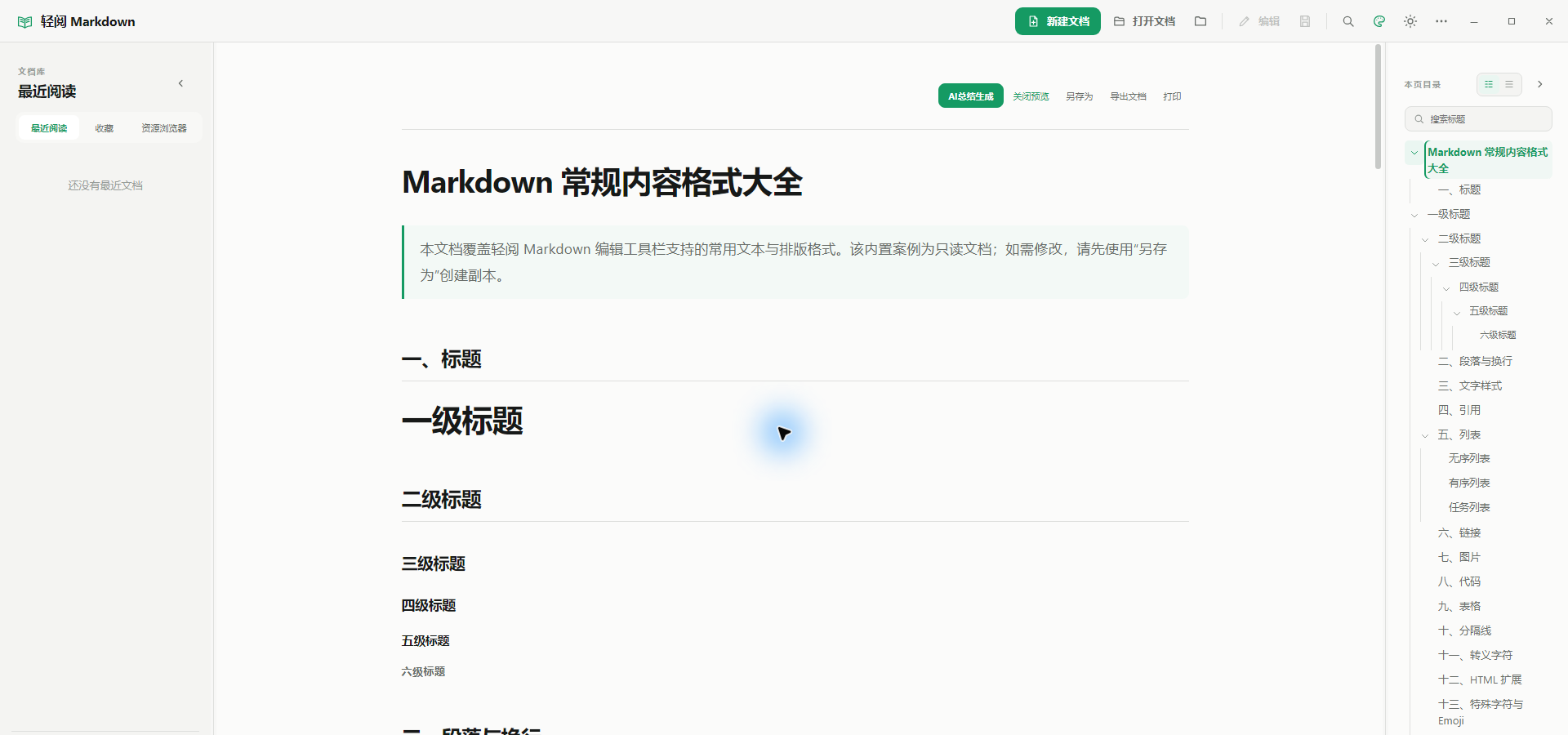
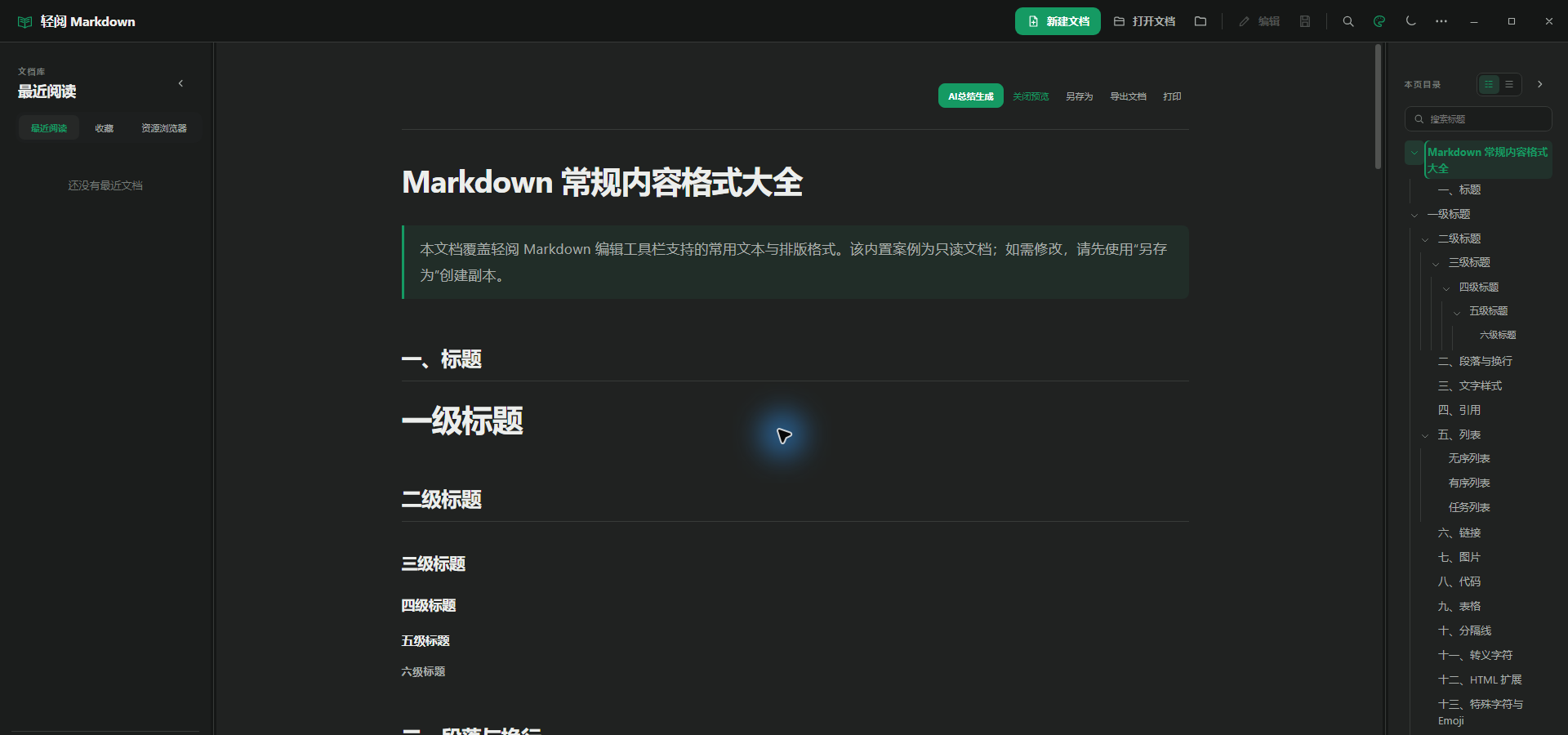
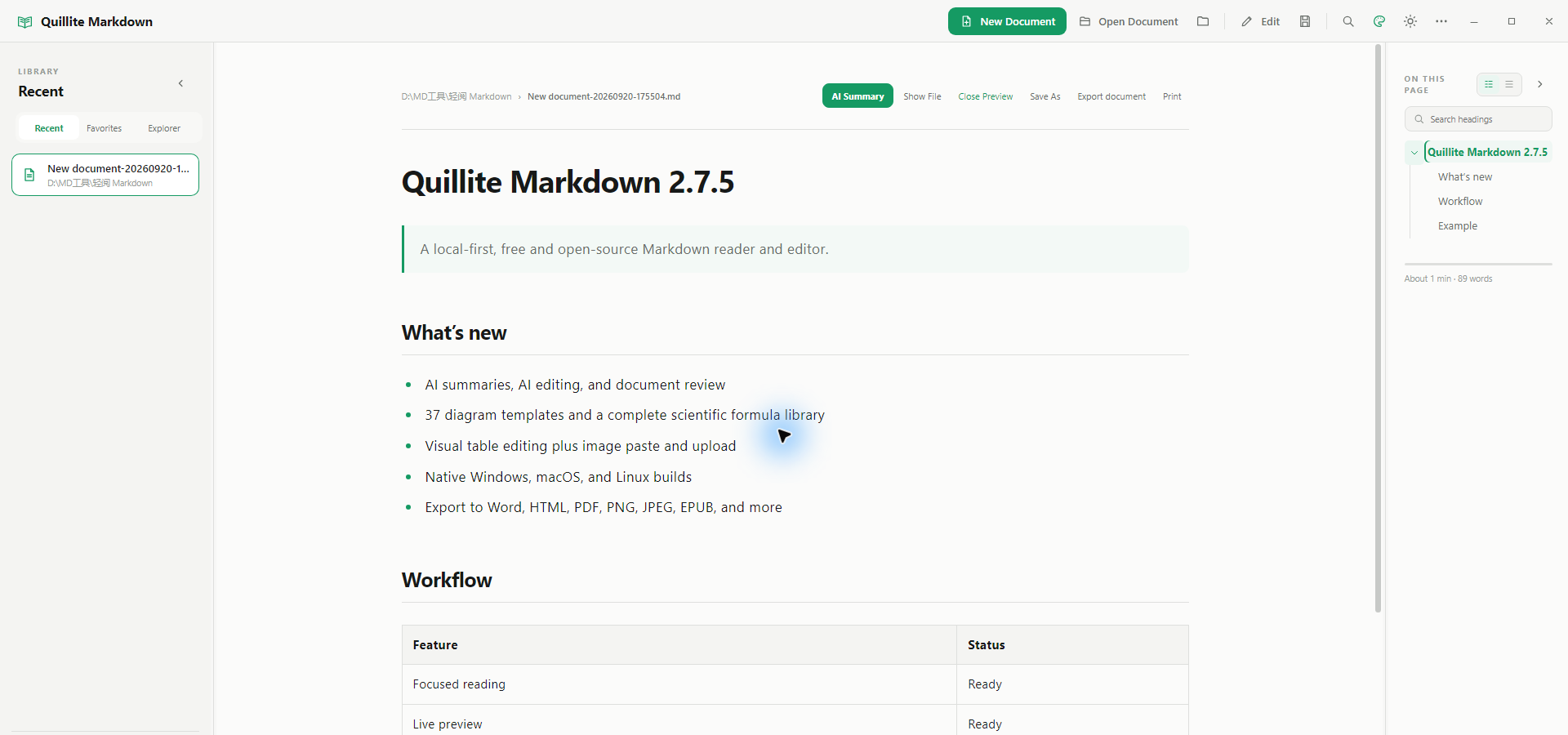
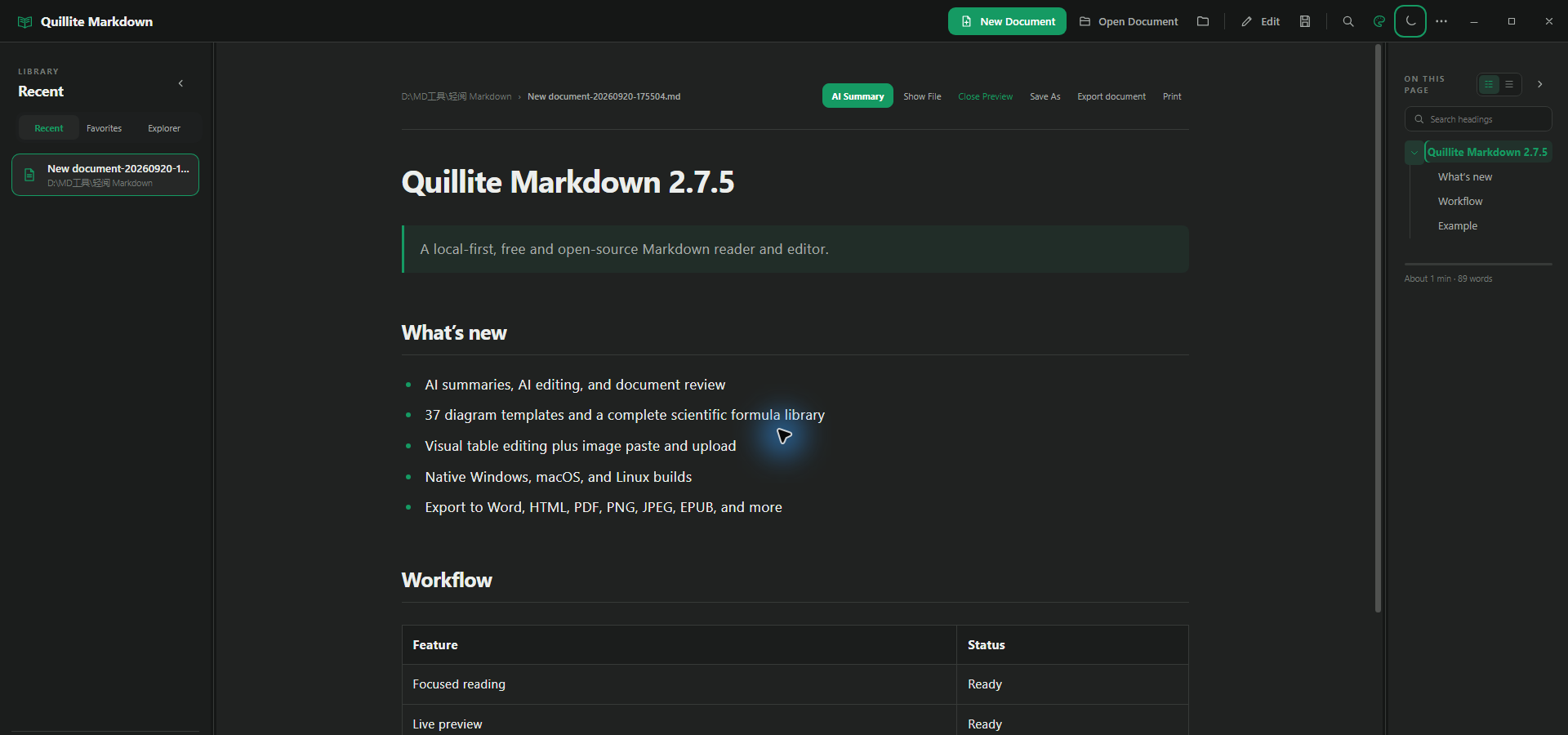
打开文件后默认进入阅读页。Markdown 会渲染标题、表格、任务列表、代码高亮、图片、脚注和公式;TXT 按纯文本保留原格式,不解析 Markdown。
Files open in reading mode. Markdown renders headings, tables, tasks, highlighted code, images, footnotes, and formulas. TXT preserves plain-text formatting without Markdown parsing.
- 点击“AI总结生成”可在发送确认与隐私检查后生成一句话概览和 3–5 个关键点;结果与分段进度在阅读页原位显示,可随时关闭。
- 右侧“本页目录”支持标题搜索和“层级/平铺”切换;层级搜索会保留命中标题的上级路径,折叠状态和视图选择都会记忆。
- 正文单独一行输入
[TOC],阅读页和编辑预览会生成随标题实时更新的可点击目录,HTML/PDF 导出也会保留。 Ctrl / Cmd + F查找预览中的文字,包括行内代码和代码块。- 可拖动左右分隔线调整文档库和目录宽度,布局会自动记忆。
- 顶部可定位原文件、另存为、导出、打印;“关闭预览”直接返回首页且不移除最近阅读。
- 外部程序修改文件后,切回轻阅会重新读取;若当前有未保存内容则不会覆盖。
- Choose AI Summary to create a one-sentence overview and 3–5 key points after send confirmation and privacy review. Progress and the closable result stay inline in reader mode.
- The right outline supports heading search and hierarchical or flat views. Hierarchical search keeps matching headings in context, and both folds and view choice are remembered.
- Put
[TOC]on its own line for live linked contents in reading and editing previews; HTML and PDF exports preserve it. Ctrl / Cmd + Fsearches rendered text, including inline and fenced code.- Drag the left and right dividers to resize the library and outline; the layout is remembered.
- Use the top actions to reveal, save as, export, or print. Close Preview returns Home without removing the item from Recent.
- When another program changes the file, Quillite reloads it on focus unless you have unsaved edits.
05 · Edit & save
分栏编辑、实时预览与安全保存
Split editing, live preview, and safe saving
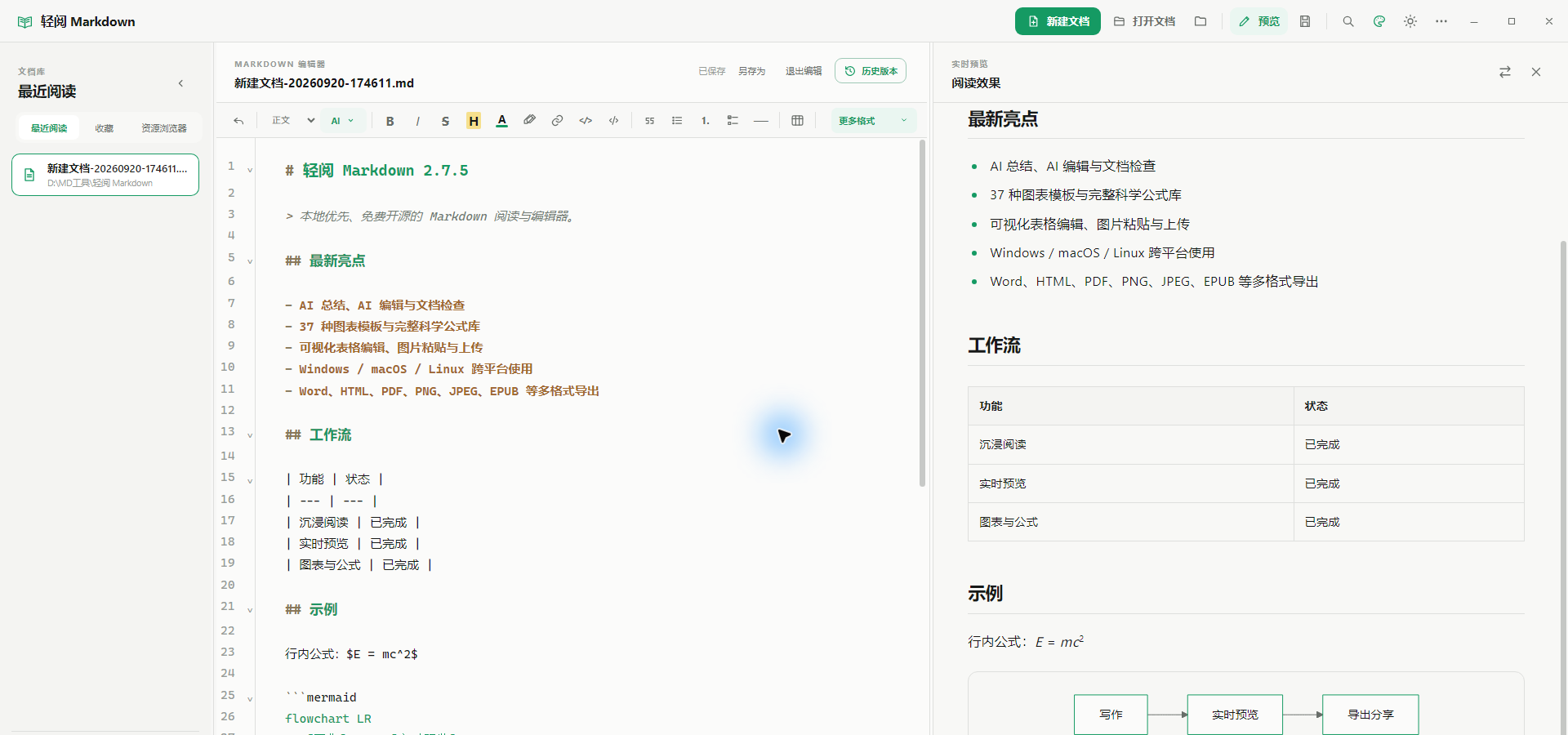
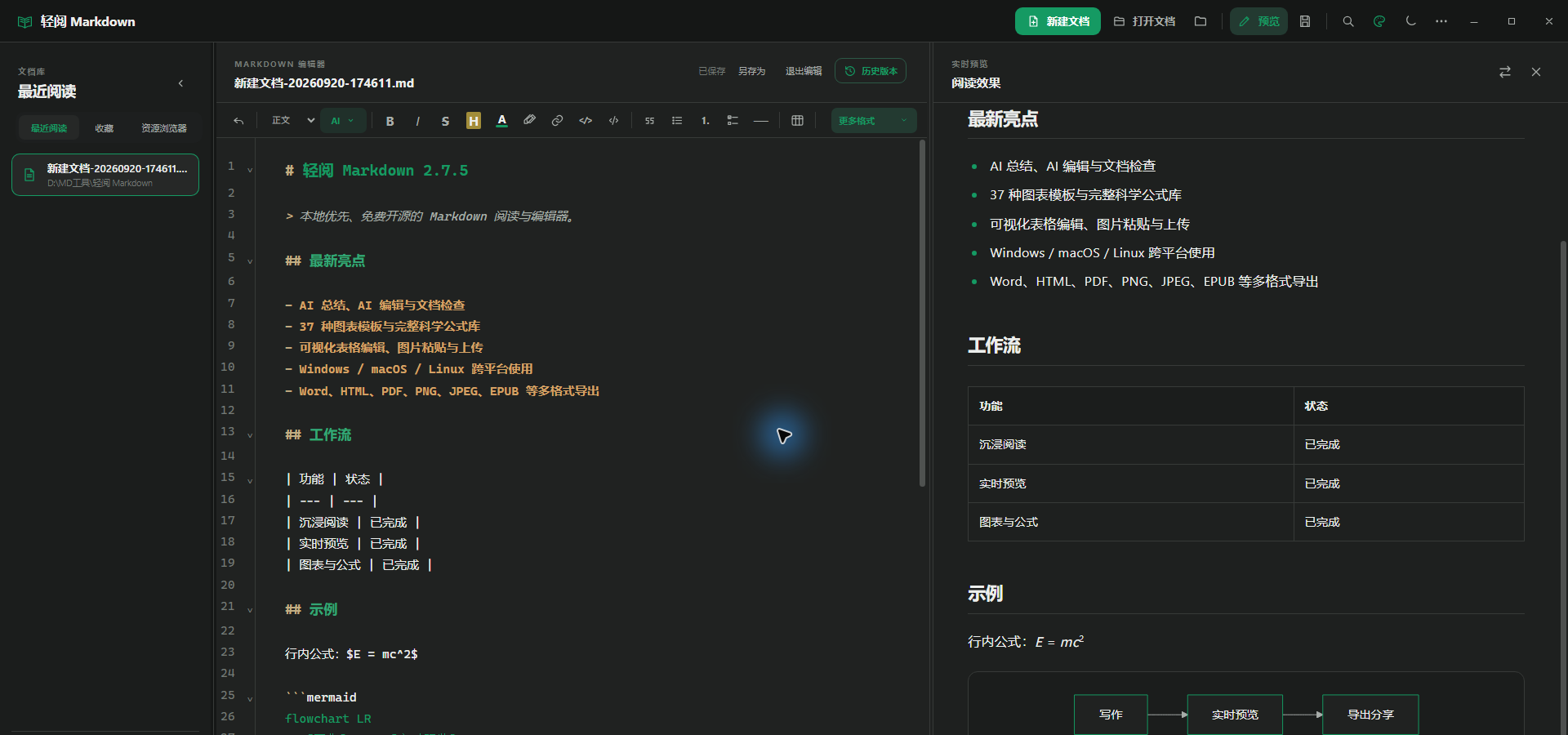
点击顶部“编辑”或按 Ctrl / Cmd + E 进入编辑。实时预览与 Markdown 源码默认左右排列;也可通过预览标题栏按钮或“更多 → 编辑布局”交换位置,或关闭预览进入全宽“仅编辑”。恢复分栏时显示最新正文,光标、选区和撤销记录都会保留。
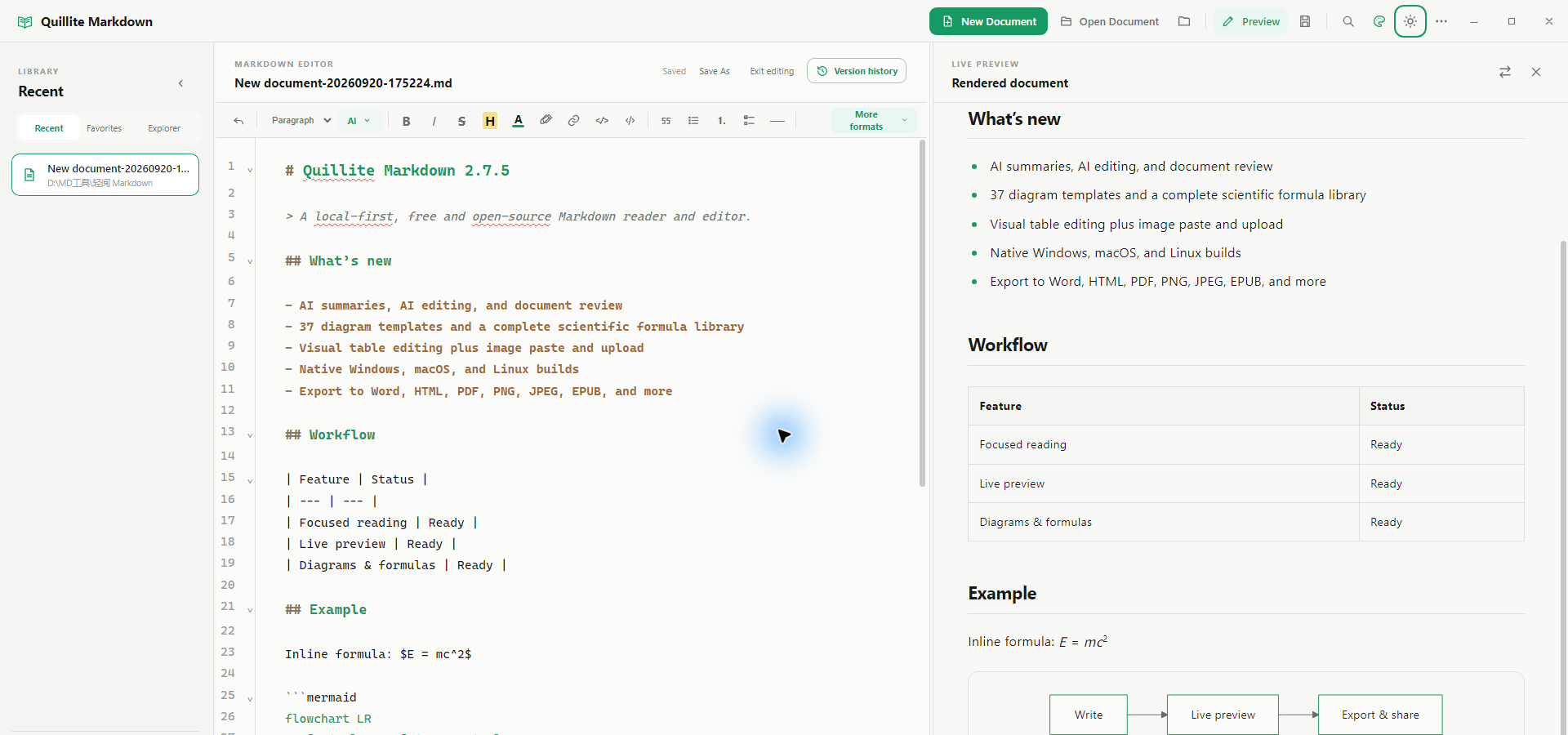
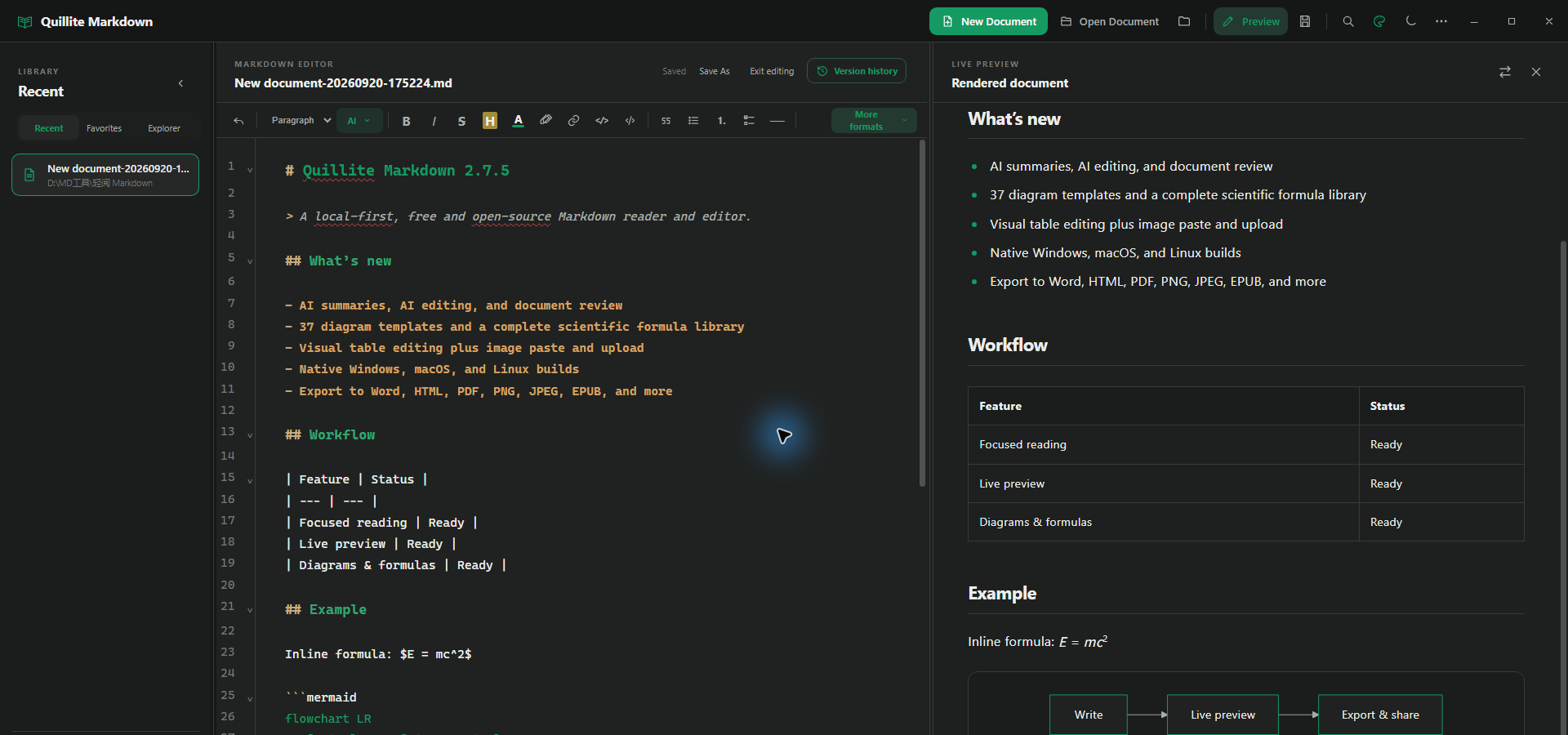
Select Edit or press Ctrl / Cmd + E to edit. Live preview and Markdown source start side by side; swap them from the preview header or More → Editor layout, or close preview for the full-width Editor only layout. Restoring the split shows current text while preserving the caret, selection, and undo history.
需要 AI 时:打开编辑器“AI”菜单选择生成、编辑、校对、续写、翻译、精简、扩写或自定义。选区类任务只处理明确选中的内容,全文检查会标明整篇范围;发送前均提供确认、敏感信息识别与可选脱敏,结果经过审阅后才写入。When you need AI: Open the editor AI menu for Generate, Edit, Proofread, Continue, Translate, Condense, Expand, or Custom. Selection workflows use only explicit text and whole-document checks label that scope; every request offers confirmation, sensitive-data detection, optional redaction, and review before writing.
Ctrl / Cmd + S 立即保存,编辑期间每 10 秒自动保存。保存前保留本地历史;若磁盘文件已变化则暂停自动保存并打开双版本对比,不会自动覆盖。未保存修改另存恢复快照,异常退出后可继续。
Ctrl / Cmd + S saves immediately and editing autosaves every 10 seconds. Saves retain local history. If the disk file changed, autosave pauses for a two-version comparison rather than overwriting it. Unsaved edits also receive a recovery snapshot for abnormal exits.
关闭实时预览后,编辑器占满可用宽度并停止独立预览窗格的自动渲染;编辑器内图表不受影响。点击顶部“恢复预览”回到上次分栏方向;显式导出仍会按最新正文按需渲染。
Close live preview for a full-width editor that stops scheduled work in the separate preview pane without disabling diagrams inside the editor. Restore preview returns to the last split direction, while explicit exports still render the latest text on demand.
编辑模式按 Ctrl / Cmd + F 查找 Markdown 源码并支持替换;阅读模式则查找渲染后的内容。
In edit mode, Ctrl / Cmd + F finds and replaces source. In reading mode it searches rendered content.
微信缓存、只读目录或被占用的文件不会强行写入。选择“另存为副本并编辑”,软件会打开新副本并保留原文件。
Quillite never forces writes to chat caches, read-only folders, or locked files. Choose Save a copy and edit; the original stays untouched.
阅读页或编辑器均可另存为新的 Markdown 文件。新建草稿完成另存后会自动迁移最近、收藏和置顶状态。
Save As is available from reading and editing. Saving a draft migrates its recent, favorite, and pin state.
本地资源模式把图片复制到 assets;内嵌 Base64 模式把 PNG、JPEG、WebP 等图片存入 Markdown,便于单文件携带。支持拖放、粘贴、10%–100% 初始宽度及后续尺寸设置;编辑器内图片支持左对齐、居中、右对齐和一排多图。单图上限 25 MiB,文档上限 64 MiB。
Local assets mode copies images beside the document; embedded Base64 stores supported images inside Markdown for single-file portability. Drop, paste, choose a 10%–100% initial width, then adjust dimensions. Editor images support left/center/right alignment and multi-image rows. Limits are 25 MiB per image and 64 MiB per document.
“更多 → 图床设置”可登录 PicGo Cloud,或连接仅限本机回环地址的 PicGo Server。图片始终先落盘到 assets,再显示真实上传进度;连接、鉴权或上传失败会静默回退本地相对路径。
More → Image hosting can sign in to PicGo Cloud or connect to a loopback-only local PicGo Server. Every image lands in assets first, then shows real upload progress; connection, authentication, or transfer failure falls back silently to the local relative path.
从网页或 Word 粘贴时自动转为 Markdown,保留标题、强调、列表、引用、代码、链接、在线图片和 GFM 表格,并过滤危险地址;编辑器选区右键可复制为 Markdown 或纯文本。
Pasting from web pages or Word converts clipboard HTML to Markdown while preserving structure and filtering unsafe addresses. Right-click a selection to copy it as Markdown or plain text.
错词显示红色波浪线,右键可采用候选、本文忽略或加入个人词典;支持自动/美式/英式词典,并排除代码、URL、HTML、公式、缩写和驼峰标识。
Misspellings receive a red wavy underline with suggestions, per-document ignore, and a personal dictionary. Auto/US/UK dictionaries exclude code, URLs, HTML, formulas, acronyms, and camel-case identifiers.
06 · Markdown format
使用格式工具栏编写完整 Markdown
Write complete Markdown with the formatting toolbar
先选中文字再点击格式按钮,或把光标放在要插入的位置。窗口较窄时,低频按钮会自动收入“更多格式”。
Select text before choosing a format, or place the cursor where content should be inserted. Less-used actions move into More Formats on narrow windows.
H1–H6、正文、加粗、斜体、粗斜体、删除线、高亮、48 色文字、下划线、上下标和行内代码。
H1–H6, paragraph, bold, italic, bold italic, strikethrough, highlight, 48 text colors, underline, scripts, and inline code.
引用、无序/有序/任务列表、分隔线、代码块、强制换行、HTML/折叠区块和注释。表格设计器可直接填单元格,增删或拖动行列、设置对齐和列宽,也能原位编辑已有 GFM 表格。
Quotes, lists, rules, fenced code, hard breaks, HTML/details, and comments. The visual table designer edits cells, adds, removes, or reorders rows and columns, controls alignment and width, and edits existing GFM tables in place.
普通链接、引用式链接、自动链接和脚注;本地图片自动复制到资源目录,支持拖放、粘贴、在线链接和显示宽度设置。代码块可选择 19 种常用语言。
Links, reference links, autolinks, and footnotes. Local images copy into assets with drop, paste, remote URL, and display-width support, plus 19 fenced-code languages.
格式刷可复制选中文本格式;窗口较窄时,学科公式、图表生成器等扩展能力会收入“更多格式”。
The format painter copies selected formatting. On narrow windows, Academic Formulas, Diagram Builder, and other extended tools move into More Formats.
07 · Formulas & diagrams
学科公式与图表生成器:从模板到 Markdown
Academic formulas and Diagram Builder: from template to Markdown
在编辑器中打开“更多格式”,选择“学科公式”或“图表生成器”。两者都采用“选择分类与模板 → 修改内容 → 实时预览 → 插入 Markdown”的流程,不需要离开当前文档。
Open More Formats in the editor, then choose Academic Formulas or Diagram Builder. Both follow the same flow: choose a category and template, edit, inspect the live preview, and insert into the current Markdown document.
基础数学、代数与函数、几何、微积分、线性代数、概率统计、物理、基础化学和化学反应。可按名称、学科或关键词搜索模板;在可视化公式中点击定位修改,使用分数、根号、积分等按钮及矩阵行列操作,模板参数和高级源码均可展开,实时预览检查最终结果。
Mathematics, algebra and functions, geometry, calculus, linear algebra, probability and statistics, physics, chemistry, and chemical reactions. Search by name, subject, or keyword. Click within the visual equation to edit, use fraction/root/integral controls and matrix row/column operations, or expand template parameters and advanced source; inspect the final live preview.
- 新公式默认行内,也可选择块级或编号公式。New formulas default to inline; display and numbered output remain available.
- 普通公式生成 LaTeX,化学模板生成 mhchem。Math templates generate LaTeX; chemistry uses mhchem.
- 光标进入已有公式可原位编辑,双击实时预览也可直接打开。Place the cursor in existing math to edit in place, or double-click its live preview.
按“流程与项目、软件与系统、数据分析、知识与规划”四类组织。新建时可使用节点画布、结构化表单或源码预览;插入后编辑器直接显示图表,光标留在后方空行。选中、悬停或键盘聚焦时就近显示“编辑图表/查看源码”,双击或 Enter 打开对应编辑器;保存前实际渲染校验,失败保留草稿和原图。
Organized into Process & projects, Software & systems, Data analysis, and Knowledge & planning. Create with a node canvas, structured form, or source preview; new diagrams render immediately with the caret on the following blank line. Selection, hover, or keyboard focus reveals local Edit diagram / Show source actions; double-click or Enter reopens the appropriate editor. Saving renders the draft first, retaining it and the original on failure.
- Mermaid 适合关系、流程、架构与计划。Mermaid covers relationships, flows, architecture, and plans.
- ECharts 适合趋势、比较、分布和指标。ECharts covers trends, comparisons, distributions, and metrics.
- 插入后保存为标准
mermaid或echarts代码块。Insertion creates standardmermaidorechartscode fences.
基础数学 · 代数与函数 · 几何 · 微积分 · 线性代数 · 概率统计 · 物理 · 基础化学 · 化学反应
Mathematics · Algebra & functions · Geometry · Calculus · Linear algebra · Probability & statistics · Physics · Chemistry · Chemical reactions
流程图 · 时序图 · 甘特图 · 状态图 · 用户旅程 · 时间线 · 看板
Flowchart · Sequence · Gantt · State · User journey · Timeline · Kanban
类图 · ER 图 · 需求图 · Git 分支图 · 块图 · 数据包图 · 架构图 · C4 上下文图
Class · ER · Requirement · Git graph · Block · Packet · Architecture · C4 context
饼图 · 象限图 · XY 图 · 桑基图 · 雷达图 · 树状矩形图 · 柱状图 · 折线图 · 堆叠图 · 面积图 · 散点图 · 正反向对比图 · 组合图 · 漏斗图 · 热力图 · 箱线图 · 气泡图 · 仪表盘 · 环形图 · 瀑布图
Pie · Quadrant · XY · Sankey · Radar · Treemap · Bar · Line · Stacked bar · Area · Scatter · Diverging · Combo · Funnel · Heatmap · Box plot · Bubble · Gauge · Doughnut · Waterfall
词云图 · 思维导图
Word cloud · Mindmap
预览与导出:公式和图表会在阅读页、编辑器实时预览中渲染。图表语法错误只显示在当前图表区域,不影响文档其他内容;Word、HTML、PDF 与图片导出都会保留渲染结果。Preview and export: Formulas and diagrams render in reading and live editing previews. An invalid diagram affects only its own region. Word, HTML, PDF, and image exports preserve the rendered result.
逐项查看 79 个模板的参数、实际预览、LaTeX / mhchem 源码与复制按钮。
Inspect the fields, rendered preview, LaTeX / mhchem source, and copy control for every one of the 79 templates.
浏览全部 37 个 Mermaid 与 ECharts 案例,查看适用场景、完整源码和五步使用方法。
Browse all 37 Mermaid and ECharts examples with use cases, complete source, and the five-step workflow.
08 · Export & print
统一导出中心:12 种格式与可复用预设
Unified Export Center: 12 formats and reusable presets
阅读页顶部和“更多”菜单只有一个“导出文档”入口。导出中心统一选择格式、页眉页脚、图片清晰度和预设;页眉页脚支持 {title}、{date}、{page},最多保存 24 条预设。v2.7.8 会在 Word、HTML、PDF 和图片导出前预检图片,遇到无法读取的图片会停止并说明原因,不生成缺图成品。
The reader header and More menu expose one Export document action. The Export Center combines format, header/footer, image quality, and presets. Headers and footers support {title}, {date}, and {page}, with up to 24 saved presets. In v2.7.8, images are validated before Word, HTML, PDF, and image export; an unreadable image stops with an explanation instead of producing incomplete output.
| 操作Action | 结果Result | 适合场景Best for |
|---|---|---|
| 另存为Save As | Markdown (.md) | 建立可继续编辑的副本Create an editable copy |
| 原生文档导出Native documents | DOCX · 带样式 HTML · 无样式 HTMLStyled HTML · Plain HTML | 办公排版、独立网页或干净语义结构Office editing, standalone pages, or clean semantic markup |
| 带书签 PDFBookmarked PDF | 调用本机 Edge/Chrome/Chromium 生成标题大纲;没有可用引擎时回退系统打印Uses local Edge, Chrome, or Chromium for heading bookmarks; falls back to system print | |
| 高清图片HD images | PNG · JPEG | 默认按 A4 比例 2 倍高清分页;短文档也可生成约 2560px 宽的单张长图Defaults to independent 2× A4 pages; short documents can become one roughly 2560px-wide long image |
| Pandoc 扩展Pandoc extensions | EPUB · RTF · ODT · LaTeX · MediaWiki · Custom | 检测或选择本机 Pandoc 后启用;软件本身不捆绑 PandocEnabled after detecting or choosing local Pandoc; Pandoc is not bundled |
| 打印Print | 系统打印窗口System print dialog | 纸张或系统打印目标Paper or system targets |
图片清晰度:长文档逐页按 A4 比例独立渲染并连续编号,不再把整篇内容缩成细长小字。选择“单张长图”时,超过 3 张 A4 的内容会自动切回高清分页;短文档仍可无损拼成长图。Image clarity: Long documents render as independently numbered A4-ratio pages instead of shrinking the entire document into tiny text. Single long image automatically switches to HD pages beyond three A4 pages; shorter documents can still join losslessly.
09 · Preferences
把阅读界面调成适合你的样子
Tune the reading interface to you
8 种强调色可与白天/黑夜模式自由组合并自动记忆。macOS 默认跟随系统,也可临时切换。
Combine eight accents with light or dark mode. Choices are remembered; macOS follows system appearance by default.
界面字体保留系统、无衬线、衬线、圆体、宋体、楷体 6 套选择;正文另有 11 种中英文风格,编辑器与预览同步,浮动面板可试用并取消恢复。公式保持专用数学字体,可独立调整大小,代码保持等宽。正文、文档库和目录还可同步缩放到 100%–200%。
Keep six UI-font options and choose among 11 bilingual body styles shared by the editor and preview. Try styles in the floating panel and cancel to restore them; math keeps its dedicated font with separate scaling, and code stays monospace. Reading text, library, and outline can also scale together from 100%–200%.
正文提供窄、中、宽、全宽四档,新用户默认使用“宽”文档宽度;已有用户保留原设置。左右侧栏和编辑分隔线均可拖动,尺寸会记忆。
Choose narrow, medium, wide, or full width. New profiles default to Wide and existing preferences stay intact. Side panels and the editor divider remain draggable and remembered.
字体、文档宽度、词典和界面语言以当前值加级联子菜单紧凑呈现,支持悬停、点击和键盘操作。Windows 还可打开系统默认应用设置,将 .md 指定给轻阅。
Font, width, dictionary, and interface language use compact current-value rows with hover, click, and keyboard flyouts. On Windows, open system defaults to assign .md to Quillite.
10 · Updates, feedback & privacy
更新、反馈与数据说明
Updates, feedback, and data
启动时从 qm.ssssa.cn 检查正式版;Windows / macOS 可应用内下载、校验、替换并重启,Linux 使用官网下载。Windows 若用户 AppData 禁止运行更新程序,会改用安装目录旁的更新辅助程序;身份无法安全确认时会暂停热更新,引导从官网下载完整安装包。
Quillite checks qm.ssssa.cn at launch. Windows / macOS can download, verify, replace, and restart in-app; Linux uses website downloads. If Windows blocks execution from AppData, the updater can use a helper beside the installed app; when identity cannot be established safely, hot update stops and directs you to the full website installer.
从“更多 → 意见反馈”选择功能建议或功能异常,填写至少 5 个字;邮箱、手机和最多 5 张 PNG/JPG/WebP 图片均为选填。提交前会明确列出发送范围。
Open More → Feedback, choose suggestion or issue, and enter at least five characters. Email, phone, and up to five PNG/JPG/WebP images are optional. The disclosure lists exactly what is sent.
“关于”中的开关只控制清理后的异常日志回传。v2.7.8 增加前端构建指纹、编辑器失败阶段与源码降级状态,超长日志标记截断。关闭后不提交错误日志;不新增正文、路径、密钥或操作轨迹采集。
The About switch controls sanitized error reports only. v2.7.8 adds the frontend asset fingerprint, editor failure stage, source-fallback mode, and explicit truncation markers. Turning it off stops reports; no document text, paths, credentials, or activity history are added.
每台设备每天最多一次,仅含服务器哈希后的随机安装标识、软件版本、系统大类、CPU 架构和粗粒度地域;不保存原始标识或来源 IP,断网时静默忽略。
At most once per device per day: a server-hashed random install ID, app version, coarse OS, CPU architecture, and coarse region. Raw IDs and source IPs are not stored; offline failures are silent.
11 · Shortcuts
常用快捷键速查
Common keyboard shortcuts
Windows / Linux 使用 Ctrl,macOS 使用 Command。应用会在 macOS 界面中自动显示对应按键。
Use Ctrl on Windows / Linux and Command on macOS. The app displays the platform-appropriate key.
| 功能Action | 快捷键Shortcut |
|---|---|
| 新建 Markdown 文档New Markdown document | Ctrl / Cmd + N |
| 打开文件Open file | Ctrl / Cmd + O |
| 打开文件夹Open folder | Ctrl / Cmd + Shift + O |
| 切换编辑 / 预览Toggle edit / preview | Ctrl / Cmd + E |
| 保存Save | Ctrl / Cmd + S |
| 查找Find | Ctrl / Cmd + F |
| 打印Print | Ctrl / Cmd + P |
| 撤回Undo | Ctrl / Cmd + Z |
| 加粗 / 斜体 / 链接Bold / italic / link | Ctrl / Cmd + B / I / K |
| 放大 / 缩小 / 默认字号Zoom in / out / reset | Ctrl / Cmd + / − / 0 |
12 · Troubleshooting
常见问题与处理方法
Troubleshooting and FAQ
为什么文件可以阅读但不能编辑?Why can I read a file but not edit it?
常见原因是微信/企业微信缓存目录只读、文件被其他程序占用,或当前账号没有目录写权限。点击“另存为副本并编辑”,选择可写目录即可;原文件不会被删除。
Typical causes are a read-only chat cache, another program locking the file, or insufficient folder permission. Choose Save a copy and edit in a writable folder; the original is never deleted.
最近阅读中的文件变灰并带删除线怎么办?Why is a recent file gray with a strike-through?
文件可能已移动、删除,或所在移动磁盘暂时离线。恢复原路径后再打开,或右键移除无效记录。移除记录不会删除任何文件。
The file may have moved, been deleted, or live on an unavailable drive. Restore the path and reopen it, or remove the stale record. Removing the record deletes no file.
公式没有渲染,只显示源码A formula shows as source instead of rendering
确认使用半角美元符号;行内公式写成 $E=mc^2$,块级公式的 $$ 建议各自独占一行。三个反引号内是代码块,不会渲染。更多例子见公式教程。
Use half-width dollar signs: $E=mc^2$ inline, or display delimiters on separate lines. Triple backticks create code and intentionally do not render math. See the formula guide for examples.
为什么 PDF 会打开系统打印窗口?Why did PDF open the system print dialog?
导出中心会优先检测本机 Edge、Chrome 或 Chromium 并直接生成带标题书签的 PDF;未找到可用浏览器或自动生成失败时才回退系统打印。此时在 Windows 选择“Microsoft Print to PDF”,macOS 选择“存储为 PDF”。
The Export Center first tries local Edge, Chrome, or Chromium to create a bookmarked PDF directly. It falls back to system printing only when no engine is available or generation fails; then choose Microsoft Print to PDF on Windows or Save as PDF on macOS.
PicGo 上传失败会丢失图片吗?Can a failed PicGo upload lose an image?
不会。选择、拖放或粘贴的图片始终先复制到文档旁的 assets,在线上传成功后才替换为 HTTPS 地址;连接、登录或上传失败会自动插入本地相对路径。
No. Chosen, dropped, or pasted images always copy to local assets first. Quillite inserts an HTTPS URL only after success; connection, sign-in, or transfer failure automatically uses the local relative path.
拼写检查会上传文档吗?Does spell checking upload my document?
不会。词典随软件安装并在本机检查;个人词典也只保存在本机配置目录。代码、URL、HTML、公式、缩写和驼峰标识会自动排除。
No. Dictionaries ship with the app and checking stays on-device; the personal dictionary also remains in the local configuration directory. Code, URLs, HTML, formulas, acronyms, and camel-case identifiers are excluded.
更新失败会不会影响当前文档?Can an update failure affect my document?
不会。更新包与用户文档分离,失败时保留旧版本。Windows 还会把应用更新原因写入用户配置目录中的更新日志;你也可以从官网重新下载安装包覆盖安装。
No. Updates are separate from user documents and a failed update leaves the old version available. Windows records updater details in its user configuration log; you can also reinstall from the official website.
AI 会自动上传我的 Markdown 文档吗?Does AI automatically upload my Markdown document?
不会自动上传。阅读、手工编辑、预览、拼写检查、历史版本和导出均在本机完成。只有你主动使用 AI 功能并确认发送范围后,选区或整篇文档才会发送给所选模型服务;发送前可识别并脱敏 API Key、邮箱、手机号、身份证号和银行卡号。不会自动附带文件名和路径;服务商 API Key 仅用于请求鉴权,不放入提示正文。PicGo 图片和反馈仍是独立的主动提交流程。
No automatic upload occurs. Reading, manual editing, preview, spell checking, version history, and export stay local. Content is sent to the selected provider only after you invoke AI and confirm the selection or whole-document scope. Before sending, Quillite can detect and redact API keys, email addresses, phone numbers, national IDs, and bank-card numbers. File names and paths are not automatically attached; the provider key is used for authentication, not added to the prompt. PicGo images and feedback remain separate explicit-submit flows.
可在软件内提交意见反馈,或到 GitHub 查看源码与提交问题。
Send feedback from the app, or inspect the source and open an issue on GitHub.